
We Tested 7 Ways to Remove Pages from PDF - Here's What Actually Works in 2026
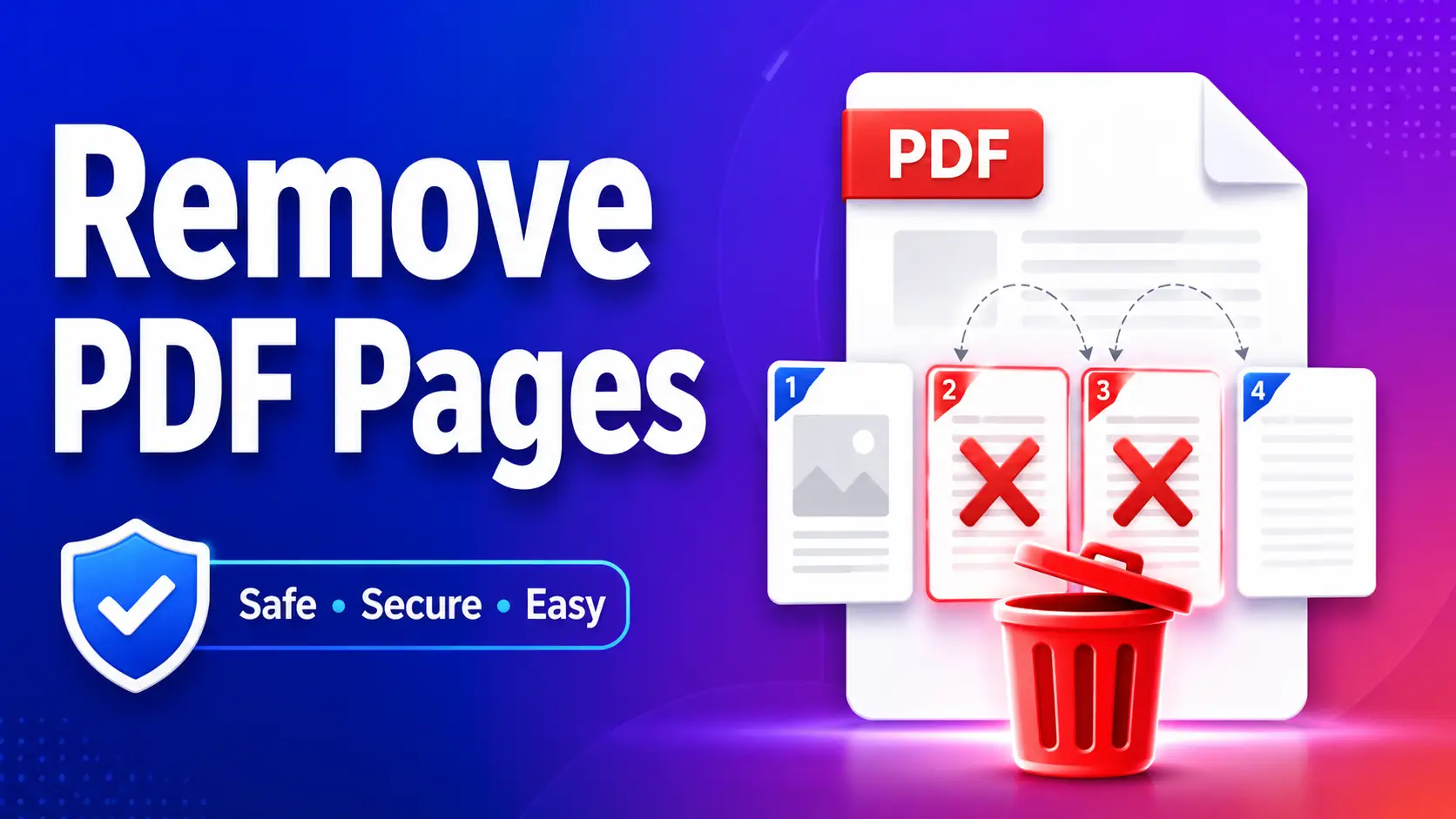
Have you ever received a PDF file and thought, “I don’t need all these pages”? You may get a 20 page report but you only need 5 pages. Or maybe you have blank pages wedged into the middle of your file. That’s frustrating, isn’t it? Good news – you don’t need to be a tech expert to fix this.
There are many easy ways to delete pages from PDF documents. Some take under 30 seconds!
In this guide, we’ll take you through all methods – from free online tools to built-in apps on your computer. No complicated process. No difficult words. Simply plain instructions anyone can follow. Let us cut to the chase.
Why you should Remove Pages from a PDF?
Before diving into the methods, let us talk about why this is such a common need.
People remove pages from PDF files for many reasons each and every day:
- blank pages were added by mistake during scanning
- A report has a cover page you do not want to share
- You scanned too many pages and now you need to cut the file
- You want to make the file smaller to send it by e-mail
- Some pages have outdated or incorrect information
Whatever reason you have, it’s totally valid. And the good news is it’s super easy to fix.
Method 1: Use ToolCompanion – The Fastest Free Way (No Sign Up Needed)
For the quickest and simplest solution, ToolCompanion's PDF Page Remover is just right. It runs right in your browser. No account required. You don’t need to install any software. And it costs nothing.
Here is the way you use it:
- Go to ToolCompanion.com and open the Remove PDF Pages tool
- Upload your pdf file ( Drag & Drop or Click to Browse )
- You will see a preview of all your pages as tiny thumbnails
- Click the pages you want to delete and they will be highlighted.
- Click the button "Delete Pages"
- Download your clean new PDF
That is all! All of this takes less than a minute. Your file is processed privately and nothing is saved on any server after you are done.
Best for: Anyone that wants a free, fast solution that does not require an install.
Method 2: Deleting Pages from PDF using Adobe Acrobat (Desktop)
Adobe Acrobat is among the most popular tools for working with PDF files. If you have it already installed on your computer, this is a great option. Note: You will need Adobe Acrobat Pro - the free Adobe Reader does not allow you to delete pages.
To delete pages in a PDF using Acrobat, follow these steps:
- Open your PDF in Adobe Acrobat.
- Under " All Tools " click on " Organize Pages "
- You will see your pages as small thumbnail pictures
- Click on the page (or pages) you want to delete – hold Ctrl (Windows) or Cmd (Mac) to select several pages
- Click the trash icon to delete
- Click OK to confirm
- Save the file with updates
Pro tip: You can type a page range like "3-7" to delete multiple pages at once instead of clicking each one.
Best for: Office users and professionals already using Adobe Acrobat.
Cost: Adobe Acrobat Pro starts at about ₹1,530 a month (or $14.99 a month). 7 Days Free Trial
Method 3: How to Delete Page PDF Online with Smallpdf
Another popular online tool is Smallpdf, and it is very easy to delete PDF file pages online. Works on any device, your phone, tablet, or laptop.
How to use smallpdf:
- Go to smallpdf.com/delete-pages-from-pdf
- Drop your PDF here or click "Choose File"
- Click the trash can icons on the pages you want to delete
- Click "Finish" when finished
- Download or share your new pdf.
Best for: People who like a clean interface and are okay with signing up for more features.
Note: Free version has daily limits. If you have a lot of files, you will reach the limit pretty quickly.
Method 4: Use Mac Preview (100% Free, Built-In on Mac)
If you are using a Mac computer, you already have a free tool to delete pages from your PDF. It’s called Preview, and it’s included with every Mac.
Here’s how to use it:
- Locate your PDF file and right-click on it
- Select "Open with" > "Preview"
- Go to “View” in the top menu and click on “Thumbnails” - this will show all your pages on the left side
- Click on the page you want to delete (hold Command to select multiple)
- Press the Delete key on your keyboard
- Save your modifications by going to File → Save
Best for: Mac users who want to get it done without downloading or paying.
Important note: if you have very complex PDFs with forms or special features built-in, Preview may not work very well. Try an online tool for those files instead.
Method 5: Microsoft Edge Browser (For Windows users – it’s free!)
There is a trick that most Windows users are unaware of. You can delete a page from a PDF file online for free using Microsoft Edge, the browser that comes free with every Windows computer.
Steps:
- Open Microsoft Edge (the browser with a blue wave icon.)
- Drag your PDF file into the Edge window (or File -> Open)
- To show thumbnails, click the Page View icon in the toolbar
- Right click the page that you want to delete.
- Select "Delete"
- Save the modified file
This is a completely free way and good for simple PDFs. And of course no internet connection needed either, since everything happens locally on your computer.
Best for: Windows users who don’t want to install anything extra.
Method 6: iLovePDF – Best for Deleting in Batch
iLovePDF is a free web tool for PDF tasks. It is great if you want more control over the page ranges or you need to delete large numbers of pages in PDF.
How to use:
- Go to ilovepdf.com/remove-pages
- Upload your PDF file
- Click on the pages you want to delete - they will get a red X mark .
- Click on “Remove Pages”
- Download the new PDF
Best for: People who want to delete many pages at once or work with large PDF files.
Method 7: Google Chrome Print Method (Works on Any Device)
That’s a smart work-around. You don’t need any additional tool, just Google Chrome.
Here's how it works:
- Open your PDF in Google Chrome (drag and drop it into the browser)
- Press Ctrl + P (Windows) or Cmd + P (Mac) to open the print dialog
- In the "Pages" field, type only the page numbers you want to KEEP (for example, if you want to keep pages 1-5 and remove page 6, type "1-5")
- For the destination, choose "Save as PDF"
- Click "Save" and give your file a name
This method does not actually delete pages per se, it just saves the pages you want. But the result is the same! You get a new PDF with just the pages you want.
Best for: People who want nothing to do with installing or signing up. Works on all OS’s.
Comparison Table - Which Method Is Right for You?
| Method | Cost | Sign-Up Required | Works On | Best For |
|---|---|---|---|---|
| ToolCompanion | Free | No | All devices | Quick, easy, private |
| Adobe Acrobat | Paid | Yes | Windows, Mac | Professional use |
| Smallpdf | Free (limited) | Optional | All devices | Clean interface |
| Mac Preview | Free | No | Mac only | Mac users |
| Microsoft Edge | Free | No | Windows | Windows users |
| iLovePDF | Free | Optional | All devices | Batch deletions |
| Chrome Print Method | Free | No | All devices | No-tool workaround |
Things to check before you delete pages from a PDF
Before you begin removing pages, here are some quick tips to keep in mind:
- Backup first. Always retain a copy of your original PDF before you make changes. It takes 5 seconds and could save you a lot of trouble down the road.
- Check if your PDF is password protected. Some PDFs are passworded. When you attempt to edit a locked PDF, the tool will ask you for a password. Pages can only be deleted with the right password.
- Preview pages before deleting them. Most tools will give you a thumbnail preview. Be sure to double-check the pages you are removing before you hit delete.
- Generally deleting pages reduces file size. This is a bonus – especially if the pages you are removing have images or graphics on them.
Can I Safely Remove Pages from PDF Online?
That’s a great question and something that many people have concerns about. The answer is: yes it is safe – if you use a trusted tool.
ToolCompanion is a nice tool that processes your file directly in the browser. Your PDF is never sent to a remote server where strangers can see it. After you’re done, the file is automatically deleted.
Things to look for when selecting an online tool:
- Does it use HTTPS (the lock icon in the browser)?
- Does it mention that files are deleted after processing?
- Is it a well-known or recommended tool?
The answer to all three is yes - you are ready to proceed.
Frequently Asked Questions
Can I remove pages from PDF for free?
Yes! Tools like ToolCompanion, Mac Preview, and the Chrome Print Method are completely free to use without any limitations.
Will removing pages reduce the quality of my PDF?
No. When you remove pages properly using a good tool, the remaining pages keep their original quality - fonts, images, and layout stay exactly the same.
Can I remove multiple pages at once?
Yes, most tools allow you to select and delete multiple pages at the same time. To select multiple pages, hold down Ctrl or Cmd while clicking.
What if my PDF is password-protected?
You will first need the right password to get it open. Once unlocked you can remove the pages as you would any other.
Can I undo if I delete the wrong page?
Depends on the tool. Some online tools allow you to undo before downloading. That is why it’s a good idea to always have a backup copy of your original PDF.
Final Thoughts
Everyone needs to remove unwanted pages from a PDF at some point. Whether you’re a student slimming down a scanned document, a professional cleaning up a report or someone who just wants to share a few pages from a long file, there’s a method here that works for you.
The quickest and easiest way? Use ToolCompanion directly in your browser. No registration, no downloads, no trouble. Upload, select the pages you want to delete, and download your clean PDF in seconds.
Try it today and make your PDF look exactly as you want!
Remove pages from your PDF now
Delete unwanted pages from any PDF instantly with our free, secure, browser-based tool.

Author
Kartik Pachare
Kartik Pachare is the founder, developer, and SEO expert behind ToolCompanion. With experience in web development, search engine optimization, and Performance Marketing, his mission is to build free, private, and genuinely helpful tools that make the web simpler for everyone. When he's not coding, Kartik is analyzing web data and exploring the next generation of online utilities.
Connect with Kartik on LinkedInComments (0)
No comments yet. Be the first to share your thoughts!